
Introducing

Terminal
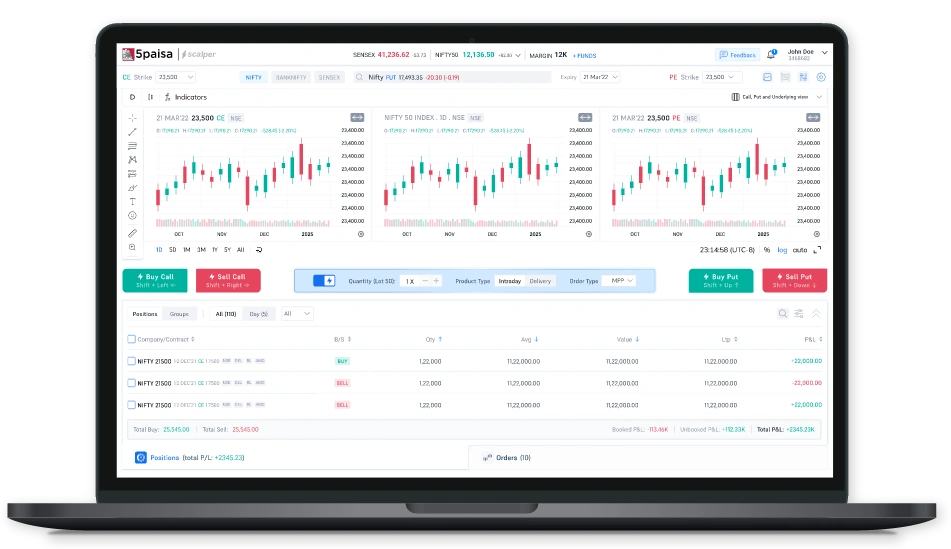
Ultra Fast Execution
Engineered for minimal latency and zero lag.
One-Tap Trading
No order forms. No friction. Just press your shortcut and execute.
All-In-One Trade View
Charts, positions, and orders all on a single screen.

Scalper Mode
Pre-configure your order size and type once, stay ready to trade fast.

FAQ
The Scalping Tool is a trading interface designed for speed and precision. It allows traders to place instant buy/sell orders using keyboard shortcuts and one-click actions, while also providing charts and positions on a single screen.
If Scalping Mode is disabled, pressing shortcut keys will not place an order, but the respective order form will open for you to review and place manually.
There are two toggle options – one on the front screen and another in settings. Both are synced, so any change in one will be reflected in the other.
-
The system will immediately place the mapped order (e.g., Shift + Left Arrow → Buy Call).
-
No confirmation pop-up will appear (to save time).
-
The order will be visible instantly in your positions/order book.
No, Shortcut keys are fixed to ensure consistency and avoid errors.
All orders placed in Scalping Mode are final and immediately sent to the exchange. Canceling or modifying them must be done manually through the order book. Users are fully responsible for their key presses.
You can pre-set your lot size and order type (Market or Limit) in the Scalper Mode settings. Once set, every shortcut-triggered trade will use these defaults.
The tool provides two display modes:
- Chart View – See live charts and place trades directly.
- OHLC View – View price data (Open, High, Low, Close) in a simplified format.
You can toggle between the two instantly based on your preference.
Yes. The tool provides an all-in-one view with Charts, OHLC, Positions, and Orders on the same screen. You don’t need to switch between tabs or windows.
This tool is primarily designed for experienced scalpers and high-frequency traders. Since orders are placed instantly, beginners should use it cautiously.
Brokerage on the 5paisa Scalper Terminal is now just ₹20 ₹10 per order! The revised pricing is designed to make high-frequency and active trading more cost-efficient, allowing advanced traders to execute more while keeping transaction costs lower.